How to Change Map in Bus Simulator Indonesia 2026 Guide
Changing the map in Bus Simulator Indonesia (BUSSID) helps you explore different roads, cities, villages, and scenic routes across Indonesia. Many players don’t know how to switch maps or use custom maps, even though the process is very simple.
This guide explains how to change BUSSID maps, how to load custom map MODs, and how to fix common map issues.
Why Change Maps in BUSSID?
Switching maps allows you to enjoy:
- New driving routes
- Better traffic variations
- Mountain, highway, and city maps
- Challenging turns and off-road paths
- More realistic gameplay experience
If you’re bored of the default routes, changing maps makes BUSSID feel fresh and exciting.
How to Change Map in Bus Simulator Indonesia (Official Method)
Follow these steps to change the map inside the game:
Step 1: Open BUSSID
Launch the Bus Simulator Indonesia game on your device.
Step 2: Tap Play
On the main menu, select Play.
Step 3: Choose Map Selection
You’ll see different options such as Free Mode, Career Mode, and Map Selection.
Tap Map Selection.
Step 4: Pick Your Desired Map
BUSSID offers multiple built-in maps including:
- City roads
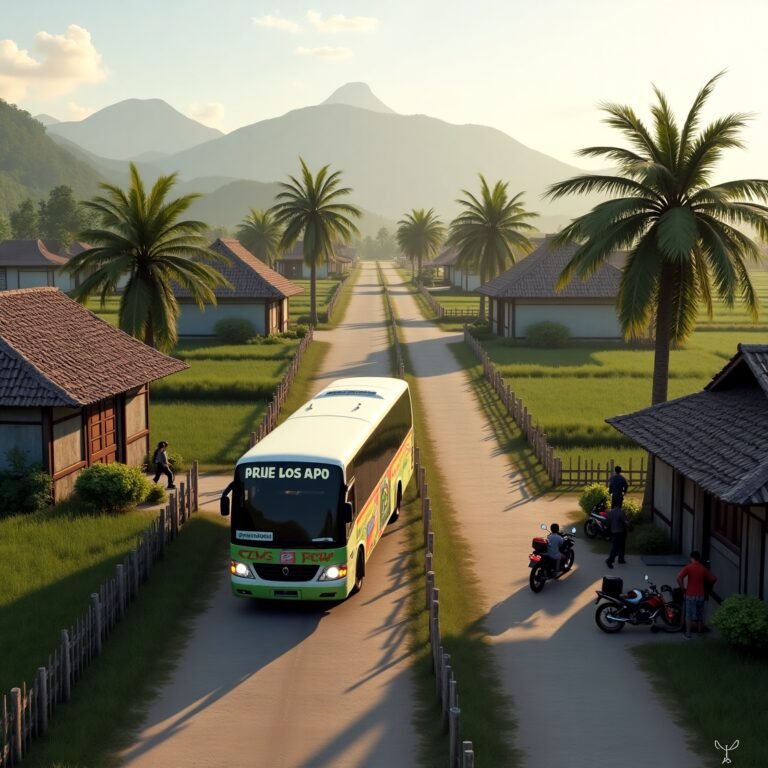
- Village routes
- Mountain roads
- Highways
- Long-distance travel routes
Select the map you want to play.
Step 5: Start Driving
Tap Start and your selected map will load instantly.
How to Change Map Using MOD (Custom Maps)
If you want special maps like Kerala Map, Gujarat Map, Hill Road Map, Nepal Map, or Highway Map, follow these steps:
Step 1: Download a BUSSID Map Mod
Download a trusted BUSSID Map (.bussidmod) file from bussid map mod.
Step 2: Move the File to BUSSID Folder
Open File Manager → Internal Storage → BUSSID → Mods
Paste the downloaded map file here.
Step 3: Open the Game
Launch BUSSID again.
Step 4: Go to Garage → Mods
Tap Garage, then open the Mod section.
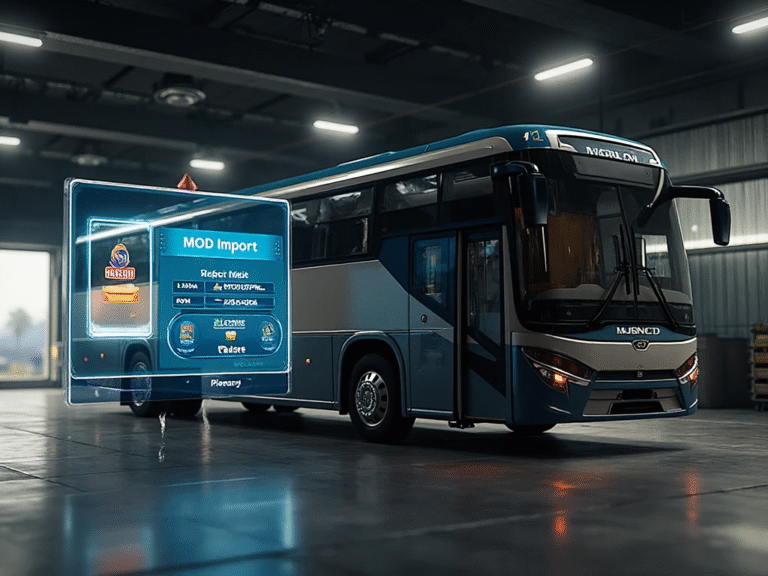
Step 5: Import the Map Mod
Select the map mod file and tap Import.
Step 6: Apply the Map
Go to Map Selection → choose the newly installed map → Start the game.
You can now enjoy the custom map inside BUSSID.
Common Map Problems & Fixes
1. Map Not Showing
– Make sure the file is in the BUSSID → Mods folder
– Restart the game
– Use the latest version of BUSSID
2. Map Crashes or Freezes
– Reduce graphics settings
– Remove outdated mods
– Make sure map version is compatible
3. Map Not Loading Fully
– Clear device RAM
– Keep storage free
– Reinstall the map mod
Conclusion
Changing the map in Bus Simulator Indonesia is quick and easy. Whether you want to play official maps or custom mod maps, just follow the steps above and enjoy exploring new roads and environments. With the right map, BUSSID becomes even more exciting and immersive.